Skip to content

Curtin University · DTS Desktop Services

AdminForge

A Windows desktop tool consolidating four high-volume permission-management workflows for the IT Service Desk — built in PowerShell and WPF, packaged with a first-time-setup wizard, and deployed via Intune.

Before AdminForge, “Modify Folder Access” and “Add me to this mailbox” tickets were the highest-friction work the Service Desk handled. The work required a mix of legacy GUIs, ad-hoc PowerShell, and an institutional knowledge of how Curtin’s AD groups, Exchange Online mailboxes, and folder ACLs actually relate. New starters took weeks to become productive on these tickets. Experienced technicians made small mistakes that escalated to my team.

The shorthand: roughly half the median resolution time for the workflows AdminForge covers, a meaningful drop in escalations, and onboarding for new Service Desk hires that takes hours rather than weeks.

PowerShell 7 WPF / XAML Active Directory Exchange Online Intune Win32 ps2exe

01 · First-time setup

Bootstrap a fresh machine in under a minute.

Problem: AdminForge depends on PowerShell 7, the RSAT ActiveDirectory module, ExchangeOnlineManagement, and ThreadJob. Walking each new user through these installs — including the RSAT step that requires admin elevation via Add-WindowsCapability — meant a half-day onboarding session for every fresh device.

Solution: A setup wizard that ships alongside the app. Auto-elevates to admin at startup. Checks each prerequisite, surfaces an orange “Install Now” per row, flips to green “Installed!” once verified. On completion it writes a setup.state file to ProgramData and re-targets the Start Menu shortcut from powershell.exe to pwsh.exe.
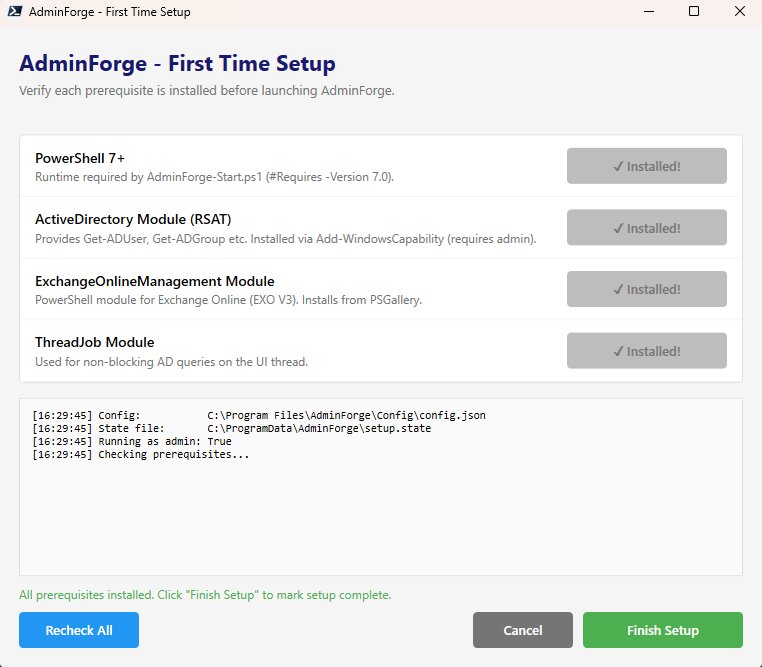
AdminForge first-time setup wizard.

02 · Privileged-account logon

One credential capture, never written to disk.

Problem: A privileged-account credential is used by every tab — AD queries, ACL operations against UNC paths, and Exchange Online. Re-prompting per tab is friction. Storing the credential is a security smell. Subtle credential-format bugs can fail silently three tabs deep.

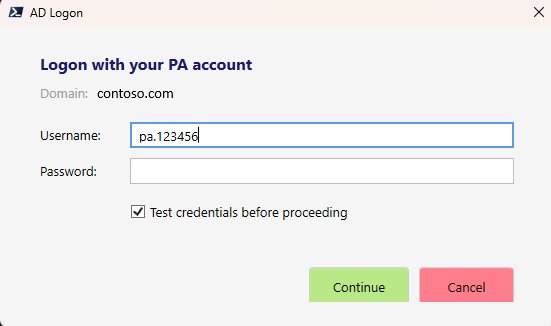
Solution: One logon form at startup. Captures the PA credential as a PSCredential, formats it so it satisfies both the Win32 LogonUser API (used by the Folder Access subprocess) and Exchange Online simultaneously. “Test credentials before proceeding” catches bad logons immediately. The credential is held in $global:AuthCred for the session, never written to disk. EXO connects in the background while the user lands on Tab 1.

AD Logon dialog requesting a PA account username and password.

03 · Tab 1 · Meeting Rooms

Three room patterns, executed correctly every time.

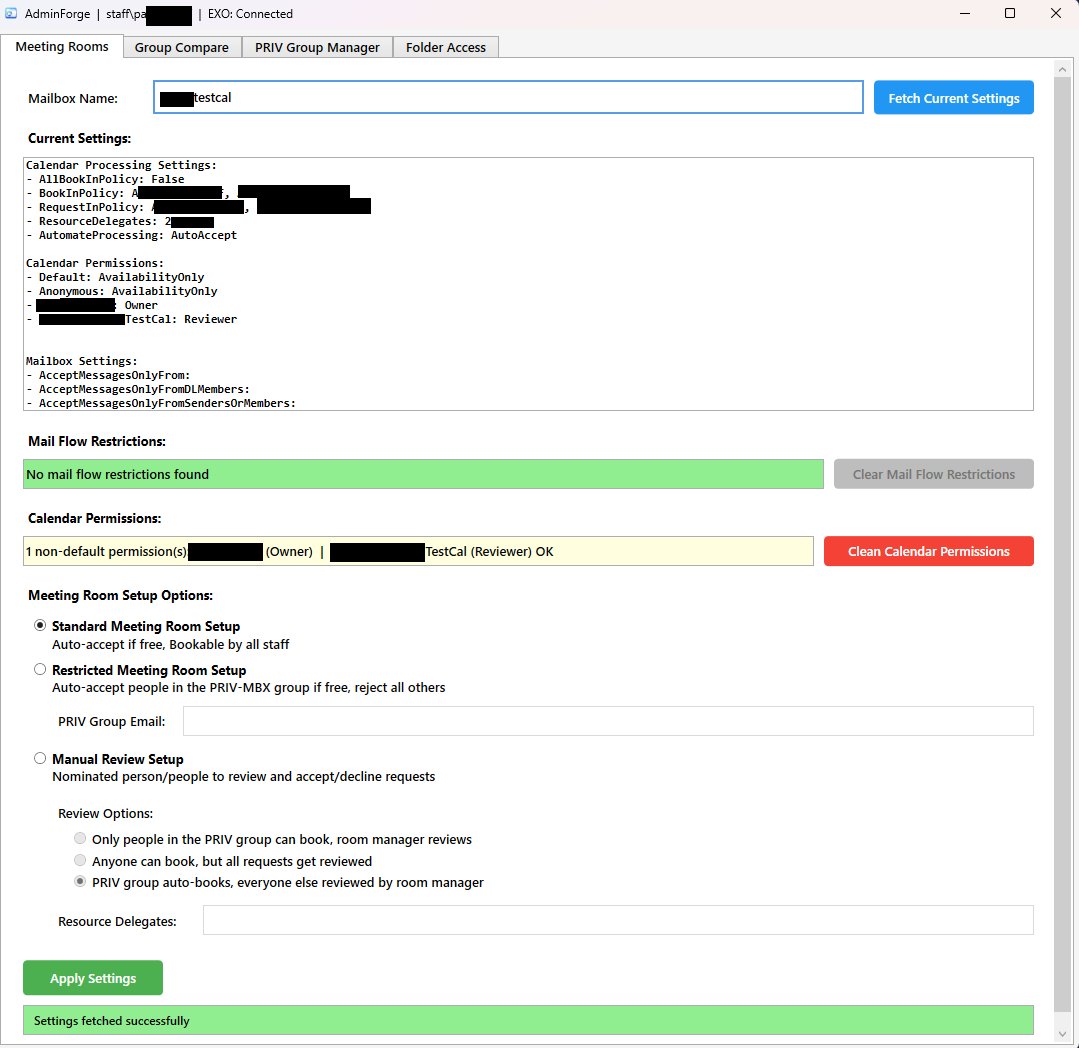
Problem: Configuring a meeting room mailbox involves Set-CalendarProcessing, Add-MailboxPermission, calendar ACLs, and pruning default + anonymous access. Three patterns — Standard, Restricted, Manual Review — each need a different cmdlet combination. Mistakes lead to unbookable rooms or rooms anyone in the org can clobber.

Solution: A single form fetches the current state, resolves the legacy DN entries in BookInPolicy back to real display names. Classifies what pattern the room is in. Lets you switch with one apply. The Clean Calendar Permissions button normalises any room with stale or wrong perms — removes non-default principals, sets Default and Anonymous to AvailabilityOnly, re-adds the PRIV-MBX group as Reviewer.

Meeting Rooms tab.

04 · Tab 2 · Group Compare

Onboarding without the spreadsheet.

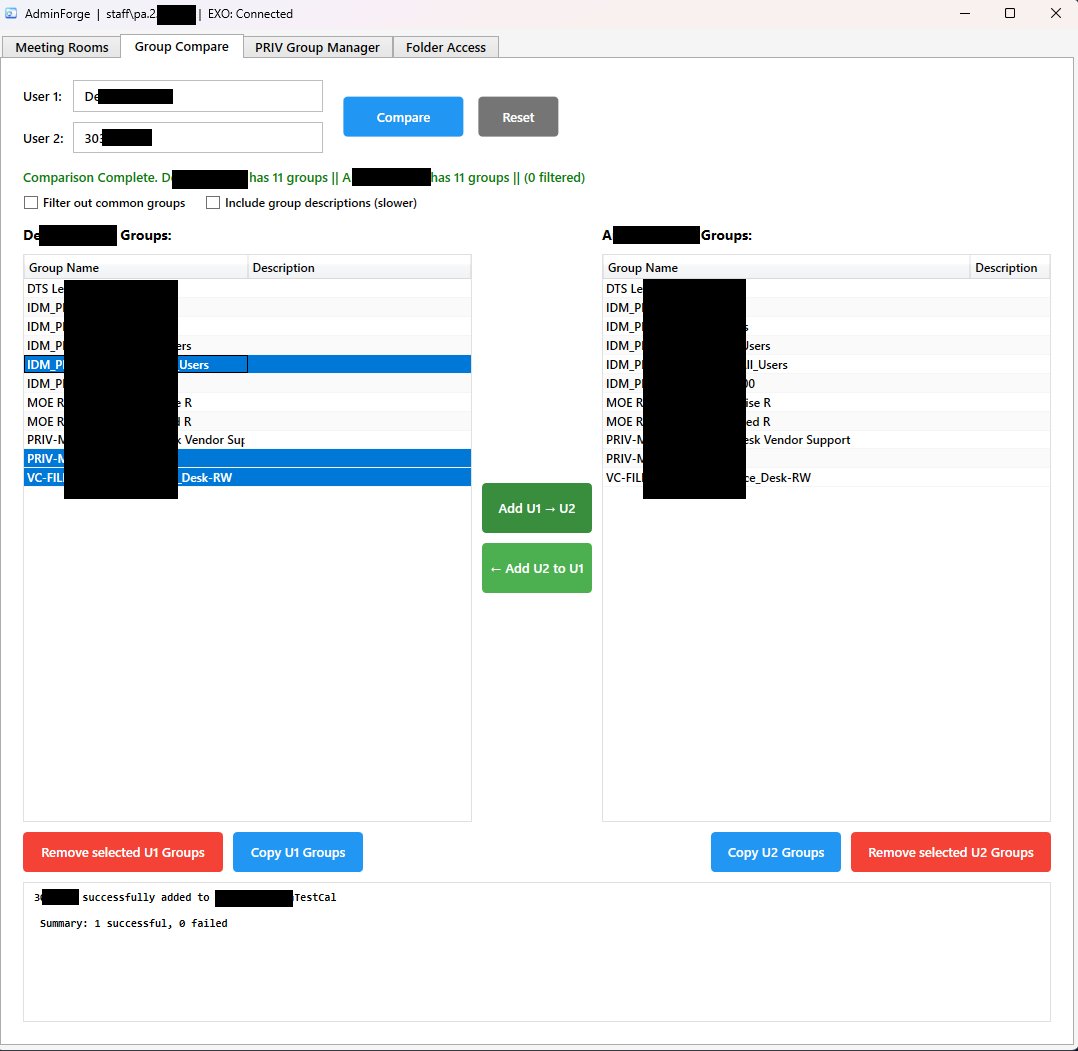
Problem: Most onboarding tickets are some variant of “make this new starter like Joe Bloggs.” Working out which groups Joe is in, which the new starter is in, and what’s missing is tedious by hand — and dangerous if you assume rather than verify.

Solution: Fetch both users’ group memberships, diff them side by side. Toggle to include group descriptions (slower because of the per-group LDAP lookup). Toggle to filter out common groups so only deltas remain. Multi-select on either side feeds into Add U1 → U2 or the reverse — replicating membership in a single click. The status output records every add and remove for the ticket.

Group Compare tab.

05 · Tab 3 · PRIV Group Manager

From an email to the right group, every time.

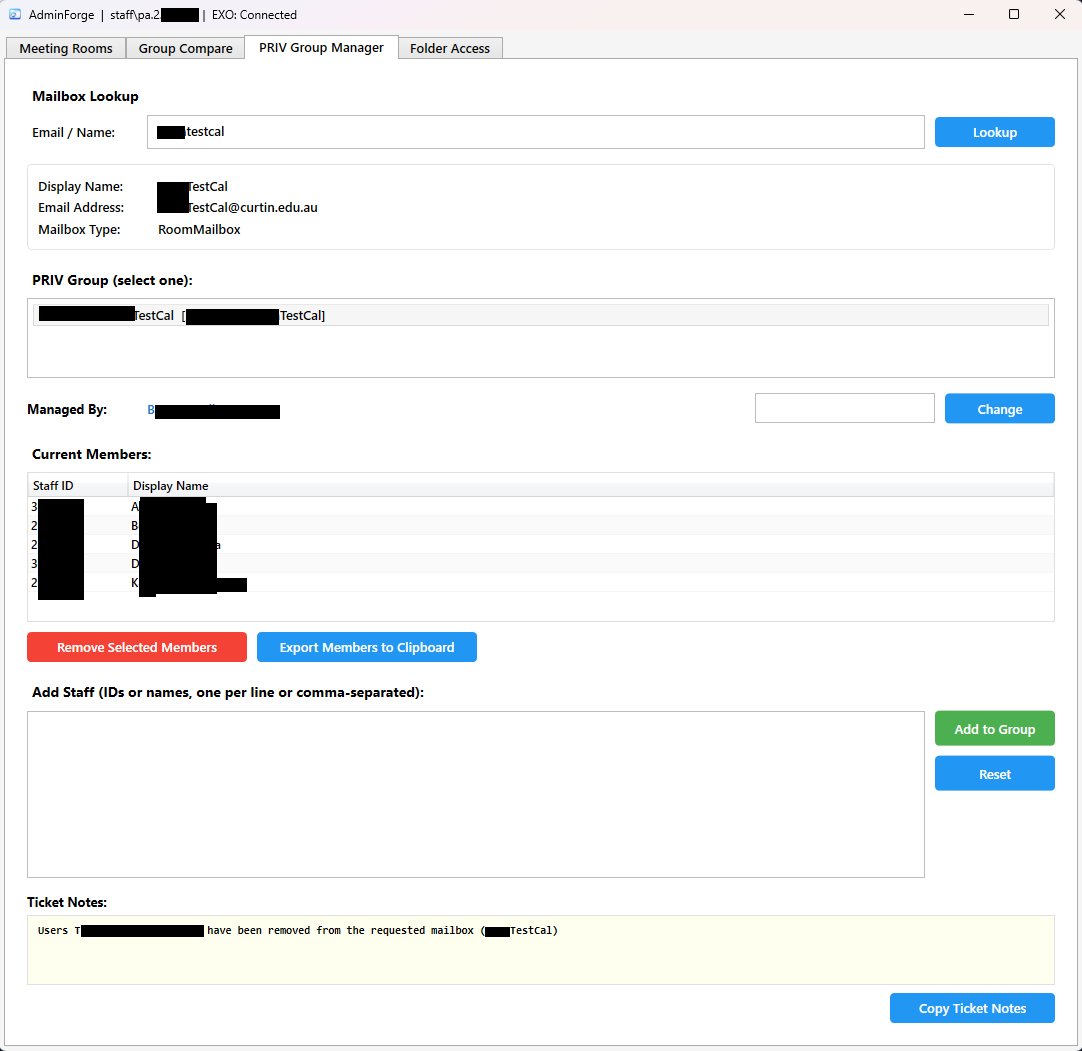
Problem: Shared and room mailbox access is controlled by priv-mbx-* AD groups. Going from a user’s request to the right AD group means resolving the email in EXO, deriving the PRIV group name, and finding that group in AD. DisplayName collisions in production mean naïve lookups occasionally surface the wrong group.

Solution: An 8-strategy EXO↔AD resolution chain handles every collision pattern we’ve seen, including two PRIV-MBX-* groups sharing a DisplayName (resolved via DistinguishedName). Lookup → resolved group → current members → add or remove with auto-generated ticket notes that include the standard 30-minute Azure AD Connect sync warning. Managed By is editable inline.

PRIV Group Manager tab.

06 · Tab 4 · Folder Access

From a path to a group, with the right ACL classification.

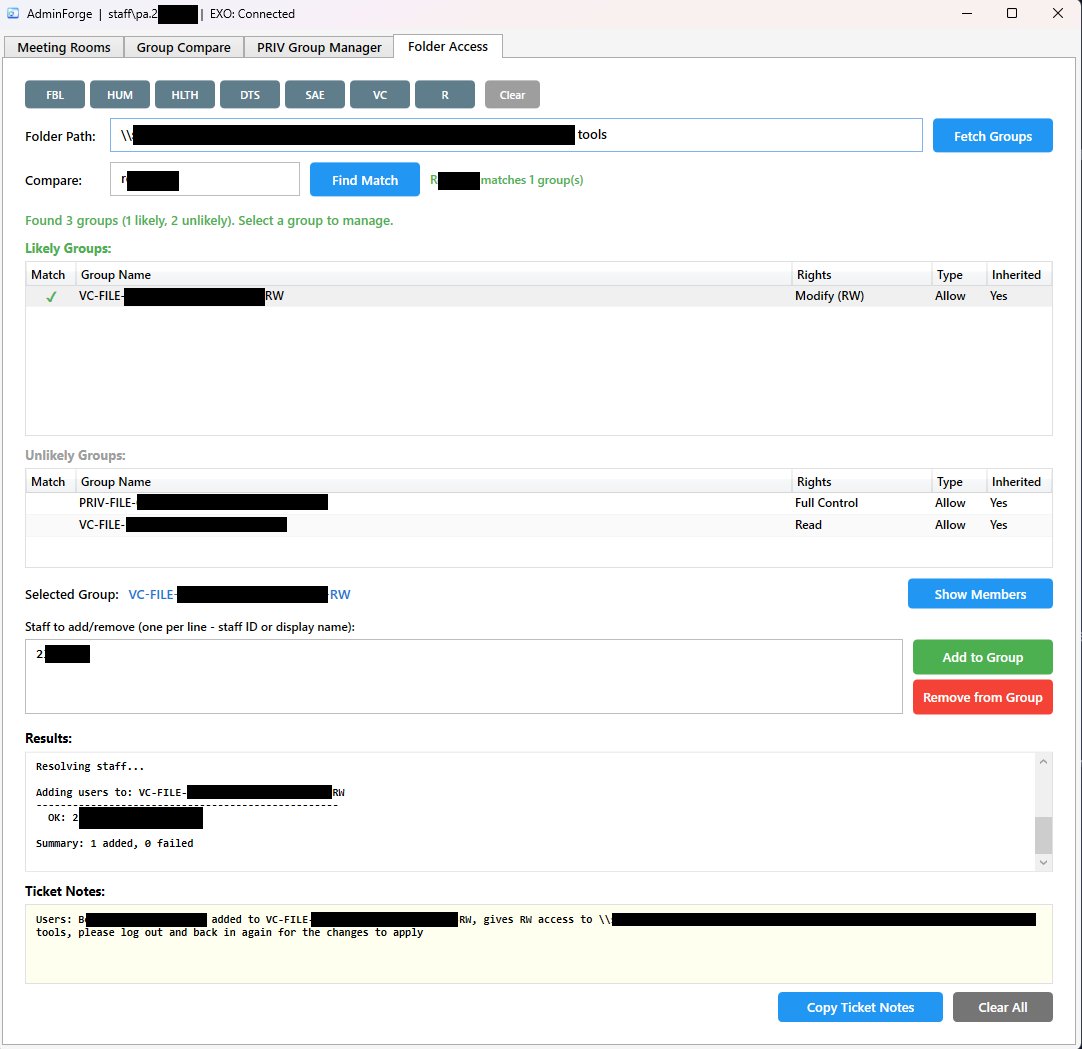
Problem: Modify Folder Access used to be the most error-prone work in the team. A staff member asks for access to a shared folder. The technician must identify which AD group controls that folder’s ACL (often multiple groups overlap), pick the right one, and add the user. Reading the ACL under a PA account runs into the WindowsApps execution restriction on modern PowerShell installs.

Solution: Faculty quick-fill buttons map common drive prefixes. Path lookup runs the ACL fetch in a subprocess via Start-Job -PSVersion 5.1, forcing Windows PowerShell 5.1 from System32 instead of pwsh.exe from the unreadable WindowsApps directory. Returned groups are classified into Likely and Unlikely. Pick a group, paste IDs, apply. Ticket notes write themselves.

Folder Access tab.

Roadmap

Four more tabs in the queue.